The Complete 2026 IPTV Setup Guide
Everything you need to know about setting up premium IPTV streaming on any device, from Smart TVs to mobile phones.
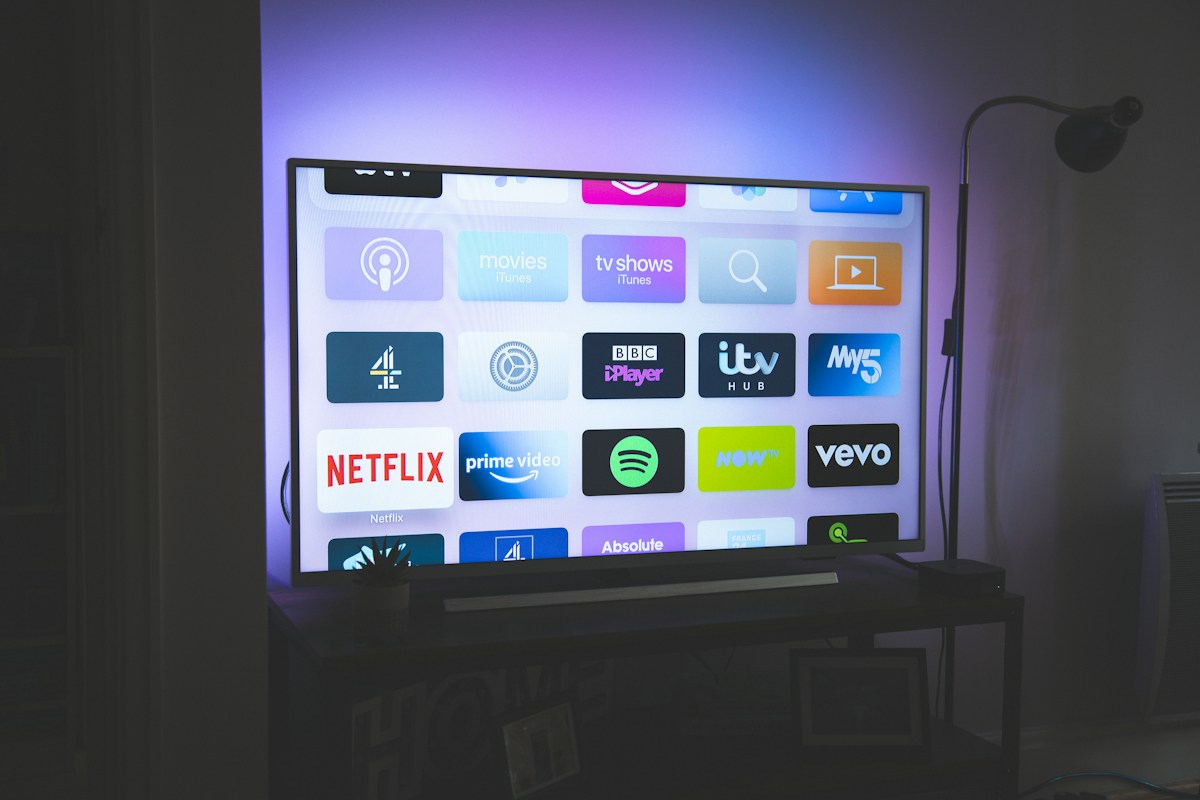
IPTV — Internet Protocol Television — has fundamentally changed how people consume television in 2026. Rather than relying on expensive satellite dishes, bulky cable infrastructure, or rigid broadcast schedules, IPTV delivers live channels, on-demand movies, and catch-up content directly over your broadband connection. The result is a flexible, high-quality streaming experience that works on virtually every screen you own, from 75-inch 4K smart TVs to smartphones sitting in your pocket.
What You Need Before You Start
A successful IPTV setup begins with three things: a stable broadband connection (at least 15 Mbps for HD, 25 Mbps for 4K), a compatible device, and a valid BestIPTV UK subscription. Wired Ethernet connections are always preferable to Wi-Fi for streaming, as they eliminate the packet loss and signal interference that cause buffering. If you must use Wi-Fi, ensure your router supports at least Wi-Fi 5 (802.11ac) and that your device sits within a reasonable range of the router.
- Internet speed: 15 Mbps minimum for HD, 25 Mbps for 4K
- Compatible device: Smart TV, Firestick, MAG box, Android, iPhone or PC
- BestIPTV UK credentials: server URL, username and password sent by email
- IPTV app: IPTV Smarters Pro, TiviMate, GSE Smart IPTV or VLC
Step 1 — Order and Receive Your Credentials
Visit the BestIPTV UK pricing page and select your plan — whether that's the free 24-hour trial, a 48-hour paid trial, or a full subscription. After completing your order, you will receive an email containing your login credentials: a server URL (sometimes called a portal URL or M3U link), a username, and a password. These three pieces of information are all you need to connect any IPTV application to the BestIPTV UK servers. Check your spam/junk folder if the email does not arrive within a few minutes.
Step 2 — Choose and Install Your App
The IPTV app you choose depends on your device. For Android TV boxes and Firestick, IPTV Smarters Pro and TiviMate are both excellent options with clean interfaces and full EPG support. For Samsung and LG smart TVs, Smart IPTV or IPTV Smarters is available from the respective app stores. iPhone and iPad users should download GSE Smart IPTV or IPTV Smarters from the App Store. PC and Mac users can use VLC Media Player (free), Kodi with the PVR IPTV Simple Client add-on, or any M3U-compatible player.
Pro Tip: TiviMate is widely regarded as the best IPTV app for Android TV. The premium version (approximately £4 one-time) adds features like recording, multi-screen view, and automatic EPG refresh.
Step 3 — Connect to BestIPTV UK
Open your chosen IPTV app and look for an option to add a playlist or account. Most apps offer two methods: M3U URL or Xtream Codes API. Xtream Codes (also called Stream Codes) is the preferred method, as it loads channels faster and supports catch-up TV. Select 'Add Playlist via Xtream Codes', then enter the server URL, username, and password from your credentials email exactly as provided, paying close attention to capitalisation and spacing. Tap 'Add' or 'Connect' and wait for the channel list to load — this typically takes 30–90 seconds depending on your connection.
Step 4 — Navigate Channels and VOD
Once loaded, your BestIPTV UK subscription gives access to 12,000+ live channels organised by country and category, plus 50,000+ VOD titles spanning movies, TV series, and documentaries. Use the search function within your IPTV app to quickly find specific channels or titles. The EPG (Electronic Programme Guide) shows what is currently broadcasting and what is scheduled for the next 7 days — enable it in your app's settings if it does not load automatically by entering the EPG URL provided in your welcome email.
Troubleshooting Common Issues
If channels fail to load, double-check that the server URL, username, and password are entered without extra spaces. If specific channels buffer but others do not, the issue is usually ISP throttling — a VPN will typically resolve this immediately. App crashes are almost always fixed by clearing the app's cache (Settings > Apps > IPTV Smarters > Clear Cache) and restarting the device. For any persistent issues, BestIPTV UK's WhatsApp support team responds within minutes and can remotely diagnose most problems.
- Channels not loading: verify credentials, check internet speed
- Buffering on certain channels: try a VPN, switch to Ethernet
- App crashes: clear cache, update app, restart device
- EPG not loading: refresh EPG source URL in app settings
- Login failure: ensure no extra spaces in server URL or password
Ready to start streaming?
Join thousands of BestIPTV UK subscribers. Free 24-hour trial — no credit card required.
Start Free Trial📺 Looking for a reliable IPTV service in the UK?
BestIPTV UK offers 12,000+ live channels including Sky Sports, TNT Sports, Premier League and UFC PPV — from £15/month with a free 24-hour trial.