iPhone & iPad IPTV Setup Guide
Complete instructions for setting up IPTV on iOS devices using GSE Smart IPTV and other apps.
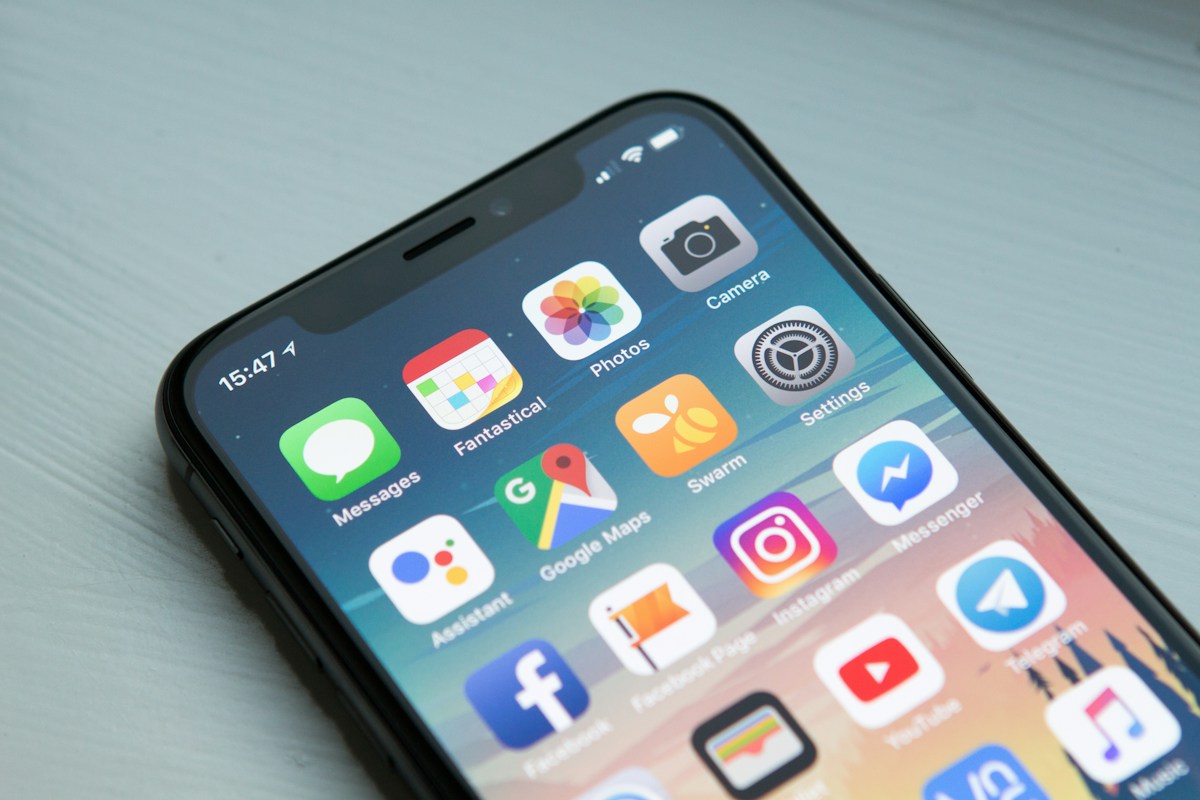
Apple's iPhone and iPad are excellent IPTV devices thanks to their powerful processors, high-resolution displays, and App Store IPTV applications that have matured significantly in recent years. The 2022 and later iPad Pro models with their Liquid Retina XDR displays make particularly impressive IPTV viewing screens, while the iPhone 15 Pro's A17 chip handles 4K HDR decoding with ease. This guide covers the complete setup process for BestIPTV UK on iOS and iPadOS devices.
Best IPTV Apps for iPhone and iPad
Three apps dominate the iOS IPTV landscape in 2026, each with distinct strengths:
- IPTV Smarters Pro (App Store, free) — the most widely used, supports Xtream Codes and M3U, clean interface, picture-in-picture support, best for beginners
- GSE Smart IPTV (App Store, paid) — most feature-rich iOS IPTV app, supports multiple playlist formats, custom EPG sources, and advanced player settings
- Flex IPTV (App Store, paid) — native iOS design with AirPlay support, excellent for Apple TV integration and CarPlay (audio only)
Installing IPTV Smarters Pro on iPhone
Open the App Store on your iPhone or iPad and search for 'IPTV Smarters Pro'. Install the app (it is free). Open the app and tap 'Add User'. You will be presented with three login options: Xtream Codes API, M3U URL, or External Player URL. Select 'Login with Xtream Codes API' and enter the server URL, username, and password from your BestIPTV UK credentials email. Tap 'Add User' and wait for your channel list to load — typically 45–90 seconds on a fast Wi-Fi connection.
Pro Tip: Enable Background App Refresh for IPTV Smarters in Settings > General > Background App Refresh. This allows the app to update your EPG guide in the background, ensuring programme information is always current when you open the app.
Picture-in-Picture IPTV on iPad
iPad's Picture-in-Picture (PiP) feature allows IPTV streams to continue playing in a floating window while you use other apps. Within IPTV Smarters, start playing any channel, then press the Home button or swipe up to return to the home screen — the stream will automatically pop into a PiP window in a corner of the screen. You can resize this window, move it to any corner, or swipe it off-screen to audio-only mode. This is particularly useful for following live sports while working or browsing.
AirPlay: iPhone IPTV to Apple TV or Smart TV
AirPlay allows you to stream your IPTV content from your iPhone or iPad to any Apple TV or AirPlay 2-compatible smart TV. While watching a channel in IPTV Smarters or Flex IPTV, tap the screen to reveal playback controls and look for the AirPlay icon (a rectangle with a triangle). Select your Apple TV or TV from the list. The stream will immediately appear on your TV while your iPhone/iPad screen turns off. Note that AirPlay adds a 1–3 second delay compared to direct streaming, which can be slightly distracting during live sports.
Optimising iOS for IPTV Streaming
A few iOS settings adjustments will improve your IPTV streaming experience. In Settings > Wi-Fi, tap the (i) next to your network and enable 'Low Data Mode' off (ensure it is not enabled, as this can reduce streaming quality). In Settings > General > Background App Refresh, ensure IPTV Smarters is enabled. For cellular streaming, go to Settings > Cellular and ensure your IPTV app is permitted to use cellular data. For the best 4K stream quality, lock your screen orientation in landscape before launching a full-screen stream.
Ready to start streaming?
Join thousands of BestIPTV UK subscribers. Free 24-hour trial — no credit card required.
Start Free Trial📺 Looking for a reliable IPTV service in the UK?
BestIPTV UK offers 12,000+ live channels including Sky Sports, TNT Sports, Premier League and UFC PPV — from £15/month with a free 24-hour trial.