Multiroom IPTV Setup Guide
How to configure multiple rooms and devices with a single BestIPTV UK subscription.
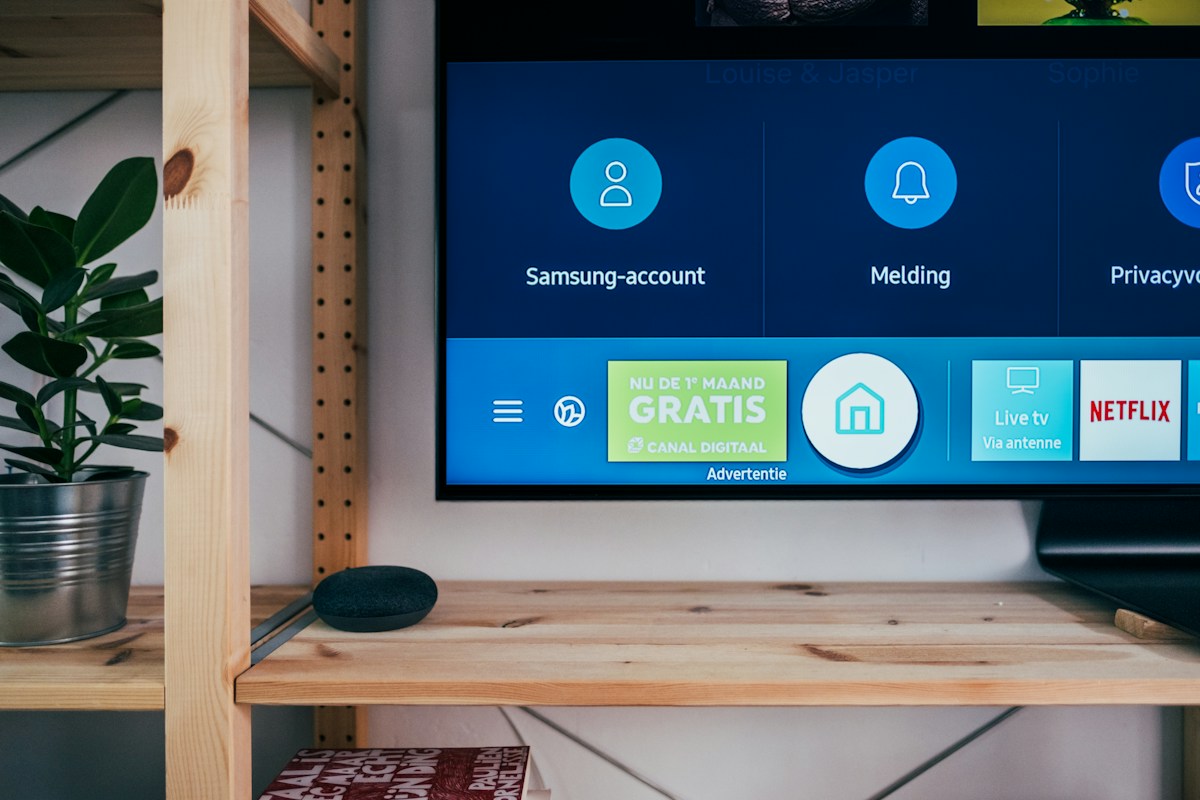
Multiroom IPTV allows different members of a household to watch completely different channels simultaneously on different TVs and devices — just as Sky Q's multiroom system does, but without Sky's additional £10–£15 per month multiroom charge. BestIPTV UK's Multiroom subscription (from £20/month) provides 2 simultaneous connections, while the Triple Room subscription (from £25/month) provides 3. This guide explains how to set up IPTV across multiple rooms and devices in your home.
How Multiroom IPTV Works
A multiroom IPTV subscription provides a single set of login credentials that can be used across multiple devices simultaneously. Both devices use the same server URL, username, and password — but can watch completely different channels at the same time. This is fundamentally different from Netflix's profile system; with IPTV, concurrent streams are managed at the server level rather than the app level. Your BestIPTV UK multiroom subscription permits the specified number of simultaneous streams, and the server enforces this limit automatically.
Pro Tip: If a third person attempts to connect on a 2-connection (Multiroom) subscription while 2 streams are already active, they will see an authentication error. To avoid this, use a Triple Room subscription if 3 simultaneous viewers are common in your household.
Setting Up Device 1 (Main TV)
Install your preferred IPTV app on your main TV — TiviMate for Android TV/Google TV, IPTV Smarters for Smart TVs, or Firestick. Enter your BestIPTV UK credentials (server URL, username, password) as normal. Your main TV setup is identical to a single-room installation — the multiroom capability is handled server-side and requires no special configuration.
Setting Up Device 2 (Second TV/Room)
On your second device, install the same IPTV app and enter the same credentials you used for the first device. Both devices use identical login information — there is no need for a separate username or password for the second connection. If you prefer, you can use different IPTV apps on each device — for example, TiviMate on the main Android TV box in the living room and IPTV Smarters on a Firestick in the bedroom. Both will work simultaneously with the same credentials as long as your subscription allows concurrent streams.
Best Devices for Each Room
For the main living room TV, a dedicated Android TV box (NVIDIA Shield or Xiaomi Mi Box) or Firestick 4K Max provides the best IPTV experience. For bedrooms, a standard Firestick Lite (£25–£30) is excellent value and fully supports HD streaming. For a home office or study, an iPhone or iPad running IPTV Smarters allows flexible viewing. For a kitchen TV, a Chromecast with Google TV (£40) is compact and unobtrusive. Each device can maintain its own favourites list and viewing preferences within the IPTV app, even though they share the same account credentials.
- Living room: Firestick 4K Max or Android TV box with TiviMate
- Bedroom: Firestick Lite with IPTV Smarters — cost-effective
- Study/office: iPhone or iPad with IPTV Smarters Pro
- Kitchen: Chromecast with Google TV — compact form factor
- Gaming room: Laptop/PC with VLC or Kodi
Managing Simultaneous Viewing
With multiroom IPTV, each viewer has complete independence — there is no 'what are we watching tonight' negotiation required. Sports fans can watch live matches in the living room while other household members access films or international TV series in bedrooms. The only limit is your simultaneous connection allowance: 2 for Multiroom, 3 for Triple Room. If you regularly have 4 or more viewers watching simultaneously, contact BestIPTV UK support who can discuss larger household plans.
Ready to start streaming?
Join thousands of BestIPTV UK subscribers. Free 24-hour trial — no credit card required.
Start Free Trial📺 Looking for a reliable IPTV service in the UK?
BestIPTV UK offers 12,000+ live channels including Sky Sports, TNT Sports, Premier League and UFC PPV — from £15/month with a free 24-hour trial.